BizDay Data Bundle

Terms and Conditions

  1. The BizDay Data Bundle Terms and Conditions must be read in conjunction with the standard Terms and Conditions contained in the Vodacom Contract airtime agreement, and the Terms and Conditions Booklet. Where any terms and conditions conflict with each other, these terms and conditions will prevail.
  2. These Terms and Conditions do not replace any other Terms and Conditions, agreements or contracts that exist between the customer and Vodacom.
  3. Vodacom reserves the right to modify these Terms and Conditions where reasonably required, and may from time to time expand on these Terms and Conditions. You will be bound by all current Terms and Conditions.
  4. By using the BizDay Data Bundle you agree that you have read, understood and are bound by the terms and conditions as set out below.
  5. BizDay Data Bundle is a value added service which can be added to Vodacom Red price plans only.
  6. BizDay Data Bundles are only available to Vodacom Business customers.
  7. BizDay Data Bundle is available for activation on specific Vodacom Business deals. The BizDay Data bundle is activated automatically on activation of the deal and will not be available for activation on any self-service channels.
  8. The BizDay Data Bundle is a recurring monthly bundle of data and the data is only available for use between 8am and 5pm daily from Monday to Sunday.
  9. Once activated, any data usage between 8am and 5pm, Monday to Sunday will deplete from the BizDay bundle first.
  10. Any unused data on the Bizday Data Bundle at the end of the month will carry over for a period of 30 days only.
  11. Once the BizDay Data Bundle is depleted standard Vodacom order of consumption will apply as follows:
  • Free/promotional data bundles;
  • Monthly tariff data allocation; 
  • Recurring data bundles;
  • Once-off data bundles. 
  1. Once the BizDay Data Bundle is depleted it cannot be recharged or topped up.
  2. The BizDay Data bundle will be available for use for data services, within the borders of South Africa during the specified period.
  3. Customers can view their BizDay Data Bundle balance on all Vodacom self-service channels i.e. Vodacom App, USSD and Online
  4. Data included in the BizDay Data bundle can be shared between other users, using the standard Family Share functionality.
  5. Users will receive usage notifications as per the current ICASA rules i.e. 50%, 80%, 95%, 100%
  6. Cancellations of a BizDay Data Bundle in its entirety only, will be allowed. This will be subject to applicable cancellation fees.
  7. Nothing in these Terms and Conditions is intended to, or must be understood to, unlawfully restrict, limit or avoid any rights or obligations, as the case may be, created for either the Vodacom or you as the customer in terms of the Consumer Protection Act, 68 of 2008 ("CPA").
  8. Vodacom respects the right to privacy and takes the protection of personal information seriously. Vodacom will only use personal information for the purposes of the Smart Business Bundle and individual services and in accordance with Vodacom's Privacy Policy available on, http://www.vodacom.co.za/vodacom/terms/privacy-policy
node-Assist suites--banner-image-img
Mobile & voice

Assist suites

Avoid no-shows by sending customers a friendly SMS reminder.

Request call back
Assist suites Benefits

The key benefits of Assist Suites

  • 01
    Automatically contact your customers

    Automatically contact your customers to confirm their appointments

  • 02
    Get feedback

    Get feedback from customers to improve your service

  • 03
    Automate

    Automate your cash collection cycle

Assist Suites overview

Make sure your customers show up on time - every time - with Assist Suites, a web application that lets you plan SMS communications with your customers. This simple system is suitable for small businesses plus it’s easy to understand and anyone can learn to operate it, so if you’re looking for an efficient way to communicate with your customers, rely on Assist Suites to send them scheduled text notifications via SMS.

What are the benefits of using Assist Suites?

• Automatically contact your customers to confirm their appointments

•     The colour-coded calendar/appointment management dashboard provides an overall view of your schedule, confirmations and appointment statuses.

•     Build Customer Satisfaction Surveys - insights learned will help you improve service and build loyalty.

•     Automate your cash collection cycle

•     Full reporting is available online

How do I get Assist Suites?

Register now


Once you’ve registered, you will pay a once-off setup fee and monthly subscription. The costs will be added to your Vodacom bill.  

Got queries? Send an email to [email protected] or call 08217866

How much does it cost?

Line items Incl. VAT
Set-up Fee (Once Off) R46.00
Monthly Subscription Fee R148.35
SMS Rate Bulk SMS Rates Apply


node-To get connected--banner-image-img
GET IN TOUCH

To get connected

To get connected request a call back, email us or call 082 1960, FREE from a Vodacom cellphone.

Request call back

What is NFC technology and is it already part of your life

What is NFC technology and is it already part of your life?

You may not know what the acronym stands for, but chances are, you are already benefitting from this technology.

NFC or near field communication allows devices (smartphones, laptops and smart devices) to communicate by sharing data wirelessly. The catch - this exchange of data has a limited range of a few centimetres unlike Wifi or Bluetooth.

An example of NFC is how I seamlessly upgraded to my new iPhone - a few easy prompts, leaving my old phone next to my new phone (i.e., peer-to-peer), and all my data was loaded onto my new phone. Compared, to previous upgrades, this was a walk in the cloud. 
The possibilities of NFC become particularly exciting when it comes to mobile payments. Near field communication (NFC) payments are in close proximity or contactless payments that allow for an exchange of data between payment devices such as smartphones, smart wallets and tap-to-pay cards (cards with NFC tags built in).


3 Examples of NFC payments:

  1. Mobile wallets/ card emulation or an NFC device being used like a card e.g., Apple Pay, Google Pay and Samsung Pay

  2. NFC-enabled cards being tapped on point of sale (POS) devices

  3. NFC-enabled cards being tapped on mobile phones e.g., Halo Dot
     

5 benefits using of NFC enabled payments?

  1. Speed matters - whether being first to market or able to take advantage of an idea as it occurs to you. With NFC payments, if you have the technology such as Tap on Phone, you can decide to download an app and immediately accept payments on your phone instead of accepting cash or waiting for a delivery of a POS Device. Unlike Bluetooth, no pairing is required so you don't need to find a phone to transact with it. You need to simply tap a card to a smartphone or device to accept payments.

  2. Close contact, close safety - because NFC payments require the devices to be centimetres apart, there isn't room for interference when making a payment and you never have to let go of your card to make the payment. If you are accepting the sale, then you never have the liability of taking a consumer's card. A mobile device, unlike a card, has built in protection through passwords and biometrics, where a card lacks this and if stolen can be used immediately.

  3. Minimal battery usage - there are enough applications diminishing our batteries. Using NFC on your phone to accept payments (or exchange data) uses minimal battery unlike Bluetooth.

  4. Pay your way - NFC technology increases ways to make payments. The focus is on the consumer and what works best for them (and tapping with minimal touch seems to be the latest need). Payments cannot only be made in more ways than ever before (with your card stored on your phone for example) but in more places because you won't need to go to a queue when the teller can walk down the aisle with their phone and come to you.

  5. No cash, no problem - NFC payments create opportunities for everyone to accept card payments from large merchants to street vendors as anyone can use their smartphone as a payment device if it has NFC enabled.


With NFC, data can now be moved faster, safer and with a tap. Your card can be present or present on your phone. Your phone can be your money maker and accept that payment.

Back to support homepage
node-Get more out of your card machine--banner-image-img

Get more out of your card machine

Using the VodaPay Merchant Portal

Whether you sell your products and services online, on social media, in-store or on the move, we can help you accept payments safely, easily and quickly.

You'll have access to a portal to manage your devices, download merchant statements and export your transaction history. Soon, you'll also be able to send receipts via email.

The VodaPay Merchant Portal allows you to view all your transactions and sales made across all our payment solutions including eCommerce, VodaPay Max and VodaPay Chop Chop.

First time user

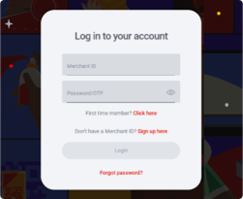
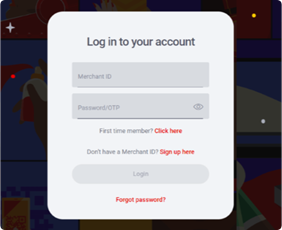
Once you have successfully been onboarded, you will receive an email with your Merchant ID, and your OTP will be sent to your cell phone number.

  • Enter your Merchant ID in the field labelled "Merchant ID". The Merchant ID is 15 characters long and begins with "VPS" e.g. VPS123412341234.
  • Enter your One-Time Password (OTP) in the field labelled "Password/OTP"
  • If your OTP has expired, you can retrieve a new OTP by clicking on the "first time user" link. You will then be requested to provide your Merchant ID, if you have a valid Merchant ID a new OTP will be sent to your cell phone number.
The Merchant Portal is designed to assist you track your transactions, grow your business and give you useful information to help you with other business operations like choosing the right finance or tools to incorporate into your marketing and sales efforts.

Please note that you can take a photo to use as a display picture for your Merchant Portal, for this, you will need a clear camera and background and within minutes you will be good to go.

Log into the Merchant Portal at any time of your convenience to track how your business is doing, whenever, wherever.

Go to the Merchant Portal Now
Back to support homepage

Tap on Phone is seamless, fast and secure...

Tap on Phone is seamless, fast and secure...

We live in a world where ease and speed are expected - this doesn't stem from a sense of entitlement but is a product of constant evolution and innovation. This applies especially to making or accepting payments.

The Tap on Phone app makes contactless card payments more accessible, faster and more secure than ever.


We see your vision, let's get you there. Sinawe...

Similar to how we now take photos and make calculations with our mobile phones, Tap on Phone is revolutionising contactless cardless payments in the same way. The bulky, payment card machine terminals we know have been dematerialised and digitised, and now sit comfortably in our phones.

This technology is especially beneficial to SMME's (small, medium and micro enterprises) who want to build their businesses their way.

Imagine you're a small business owner and you have the chance to sell your products at a market. Instead of scrambling for a card machine, or the unsafety of dealing with cash, you can simply download the app for free and start accepting payments.


Is Tap on Phone secure?

In short, yes. The sole purpose of Tap on Phone is to safely make and accept electronic payments. You have all the security capabilities of terminal hardware, but it now sits on your smart phone. You also have access to extensive software that you can build on to that foundational hardware for added security.

When you tap to pay, the payment details are captured on a separate device, which is much harder for a hacker to intercept or crack. The safety software that Tap on Phone has imbedded in the app works in partnership with the security elements on your device, like Keystore, which generates strong encryption keys for hardware.

What's important to remember is that security needs maintenance. Tap on Phone continuously builds layers and security mechanisms to protect the software and your payments.


Is Tap on Phone the same as Apple Pay, Google Pay, Samsung Pay?

Tap on Phone is very different to these services. They fall on the payment side, Tap on Phone is on the acceptance side. The similarity is that both apps use the same technology - the NFC (near field communication) reader on the device is the same type of technology that Tap on Phone uses to accept card payments. Simply put, Tap on Phone is taking the payment from Apple Pay. Same technology, but different purposes.

Tap on Phone has established a new inclusive world of possibilities for quick, easy and secure contactless card payments, especially for SMME's and their consumers.
The app is available on Android and is free to download on the Google App store. For more information visit us: 
Tap on Phone | Vodacom (vodacombusiness.co.za)

Back to support homepage

No card machine try the Tap on Phone app

What is NFC technology and is it already part of your life

Do you want to accept card payments from your customers but can't afford a card machine and its monthly transaction fees?
Are you worried about the security of both your business and its customers when you accept card payments when using the Tap on Phone app?
 

Let's give you the peace of mind you need to use Tap on Phone with ease:

The McKinsey 2020 Digital Payments Consumer Survey found that digital payments continue to grow in adoption and relevance. Smart solutions that offer accessible and easy digital transactions are increasingly becoming essential to consumer stickiness and engagement. However, as these solutions evolve, so must the security surrounding them to ensure that both retailer and consumer are protected. This is particularly relevant with software Point-of-Sale (SoftPOS) platforms which are gaining traction in the payments space. Juniper Research estimates that the number of handsets capable of using contactless payments will grow to 24 million by 2026.
 

What makes a good card payment solution?

From PCI compliance, encryption, to PIN management and more - Payment solutions need to tick multiple boxes before they're launched into the market and retailers must ensure that the promises of robust security are kept by the solution before they implement it. Good security practices are essential to provide both the retailer and consumer with peace of mind throughout.
 

Fraud is a real problem, making security a necessity...
 
Contactless payments can be misused, which is why most banks impose a maximum payment limit as they can prevent fraudsters from cloning and using credit or debit cards after a certain period and minimise the financial damage to the consumer. For online payments, where the cardholder is unable to physically prove that they have the card in front of them, second-factor mechanisms like Verified by Visa and Mastercard Secure Code are used to verify that the person performing the transaction is the cardholder. 
 

Download the Tap on Phone app on the Google App store for free...
VodaPay Tap on Phone - Apps on Google Play

Tap on Phone allows business owners and their customers to transact quickly with a simple tap within a secure environment that fosters trust on both sides. 


Back to support homepage
node-Manage your store with one dashboard--banner-image-img

Manage your store with one dashboard

Managing your store

Check how your store is doing by login into your Merchant Portal and clicking on the manage your store tab. The money you make monthly and the fees you incur will be displayed here for you and you can stand empowered knowing just how your business is doing.

Using the VodaPay Merchant Portal

Whether you sell your products and services online, on social media, in-store or on the move, we can help you accept payments safely, easily and quickly.

You'll have access to a portal to manage your devices, download merchant statements and export your transaction history. Soon, you'll also be able to send receipts via email.

The VodaPay Merchant Portal allows you to view all your transactions and sales made across all our payment solutions including eCommerce, VodaPay Max and VodaPay Chop Chop.

Access the VodaPay Merchant Portal

How to log in
First time user

Once you have successfully been onboarded, you will receive an email with your Merchant ID, and your OTP will be sent to your cell phone number.

  • Enter your Merchant ID in the field labelled "Merchant ID". The Merchant ID is 15 characters long and begins with "VPS" e.g. VPS123412341234.
  • Enter your One-Time Password (OTP) in the field labelled "Password/OTP"
  • If your OTP has expired, you can retrieve a new OTP by clicking on the "first time user" link. You will then be requested to provide your Merchant ID, if you have a valid Merchant ID a new OTP will be sent to your cell phone number.

Password
How to set your password

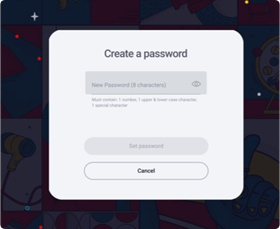
  • Once your Merchant ID and one-time password have been verified, you will be requested to set your new login password.
  • Your password should consist of at least one number, one uppercase character, one lowercase character, one special character and should have eight characters minimum. e.g. 1Aa&5678
  • Once your password has been set, you will be navigated to the login screen to login with your new credentials.
Change password
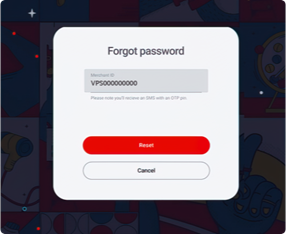
Did you forget your password?

  • Click on the "Forgot password" link under the login button.
  • Enter your Merchant ID and an SMS will be sent to your number.
  • You'll need to enter the OTP, which will allow you to create a new password.
  • Your password must have eight characters. One uppercase, one lowercase and one special character must be included.
  • When your password is reset, login with your Merchant ID and password. You will be directed to you dashboard.
Dashboard
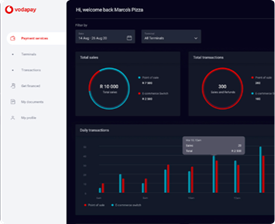
What is on your dashboard?

  • You can navigate through the portal using the menu on the left-hand side of your dashboard.
  • The first graph on the top left of your dashboard is your total sales. This is the total Rand value of all the income earned across your terminals and can be filtered per terminal type.
  • The second graph on the top right of your dashboard is your total transactions, this includes, but not limited to, card taps, card swipes, QR scans, and reversals.
  • The third graph below your total sales and total transactions is your daily transactions. This shows the Rand value and number of taps, swipes, or QR scans per device. You can track your sales and transactions on an hourly basis or over a selection of days.
  • Below your daily transactions, you can view your recent transactions and account settlements. Under "Recent Transactions" you will be shown your last few terminal transactions which have not yet been reconciled. "Last settlement" is the most recent amount we have settled with you.
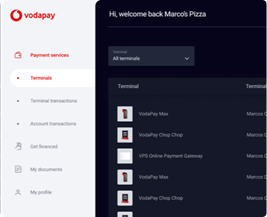
Terminals
Terminal Information

  • You can filter through your terminals by terminal type.
  • You can view your terminal type, personalised name, terminal ID and each terminals status.
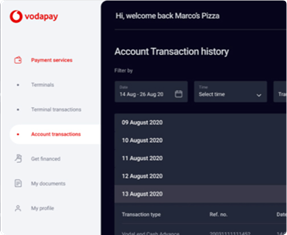
Transactions
Account Transactions

  • You can filter your reconciled transactions by date, transaction type and response codes.
  • If you wish to save your transaction history, you can click on the "Export" button. This will export your transaction history as a CSV.
  • For each date, we show you the total amount you earned in each settlement. You can expand these totals to view a breakdown of each settlement.
  • If you would like some more information on a transaction, you can click on the line item. This will open a right hand slide out menu which will give you more details on a transaction.
  • Coming soon, you will be able to send a receipt to an email address.
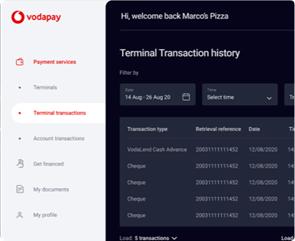
Transactions
Terminal Transactions

  • You can filter your processed transactions by date, transaction type and response codes.
  • If you wish to save your transaction history, you can click on the "Export" button. This will export your transaction history as a CSV.
  • For each date, we show you the transactions processed.
  • If you would like some more information on a transaction, you can click on the line item. This will open a right hand slide out menu which will give you more details on a transaction.
Finance
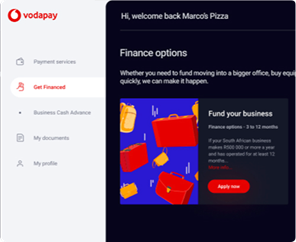
Get financed

  • As a Vodacom Business customer, if your business is performing well, you will be able to apply for business funding. If you qualify for business funding, you can click on the "Apply Now" action. If you don't yet qualify, click on the "More Info" to find out how to qualify.
Documents
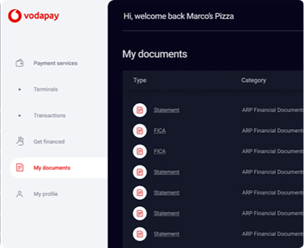
My documents

  • In the documents tab, you can either view or download your documents such as your monthly invoice and financial statements.
  • If you click on the file name, you will be able to view the selected the document. If you click on the download icon, the document will download to your device.
Profile
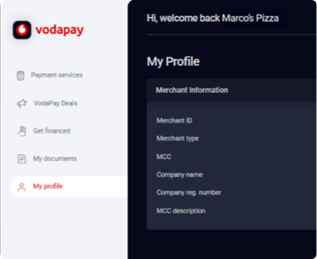
My Profile

  • Your profile displays your business information and the option to change your password.
  • On your profile we display your Merchant ID, Merchant Type, Merchant Category Code and Description, Company Name, and Business Registration Number.
Refund
How to process a refund

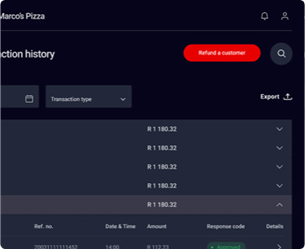
  • Log on to the Merchant Portal using the credentials supplied during on-boarding. From the landing page of the Merchant Portal, navigate to Account Transactions in the left menu pane.
  • Click "Refund a customer"
  • Select the transaction that you would like to refund by clicking on the arrow [>] in the details column of the transaction.
  • The list of transactions that meet the search criteria will be displayed.
  • Transactions will be available on the Merchant Portal for as long as the agreed archive date has not been reached.
  • Only transactions with the response code "Approved" can be refunded.
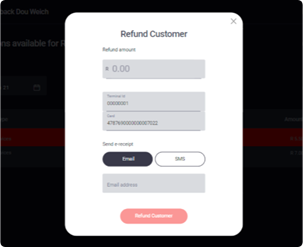
Refund
Edit the refund details

  • Enter the amount you would like to refund the customer.
  • The amount may not exceed that of the approved amount of the transaction.
  • Partial refunds can also be performed.
  • The merchant can enter an email address or cell phone number for the e-receipt to be delivered to.
How and when do I get paid?

At the end of each business day, VodaPay will perform a settlement process which considers all successful payments processed on your behalf as well as any refunds that you have performed.

On the next business day, VodaPay will calculate the amount due to you by offsetting any debits such as refunds or transaction fees, against payments received. The remaining balance is then paid into your designated clearing bank account.

A detailed view of this can be found on the Account Transactions screen of the merchant portal. Invoices for fees charged by VodaPay are available on the Documents screen on the merchant portal.

Do you need help?

To have your questions answered, please visit our FAQs section. It covers several commonly asked questions that may provide you with the answers you need. Alternatively, please contact our call centre and our friendly agents will be happy to help you.

Website: http://voda.com/accept-payments
Email: [email protected]
Call Centre: 0800 000 654 Free from any network
Call centre operating hours
Monday to Sunday 8:00am to 7:00pm with after-hours emergency support


Back to support homepage

How to activate the Pin Shuffle feature on the VodaPay Max card machine

How to activate the Pin Shuffle feature on the VodaPay Max card machine

How to activate the Pin Shuffle feature on the VodaPay Max card machine

Staying safe as you do business with your customers while using our VodaPay Max card machine, is important to us. We want you to be confident using your card machine and be assured that you are always safe.

Here's some useful information on how to activate the Pin Shuffle feature on your VodaPay Max card machine. We have made this information to be a step-by-step process so that it is easy to follow.
 
8 steps on how to activate the PIN shuffle feature on your VodaPay Max Card Machine:

Before starting, click on the burger icon (top right of your screen) to display the Pin Shuffle menu.

Step 1: Enter your contact information then press next
Step 2: On the drop down menu, press Manager
Step 3: On the Supervisor screen, enter your supervisor pin
Step 4: On the drop down menu, select Manager Local
Step 5: Enter the Manager Password
Step 6: Please scroll down
Step 7: By default the PIN Pad is not shuffled
Step 8: Toggle Enable Shuffle to shuffle the PIN Pad
 
Your PIN Shuffle feature should now be set up and you're ready to allow your customers to use this when they make electronic payments.

We see your vision, let's get you there, Sinawe.
 

Back to support homepage

Five Frequently Asked Questions about the VodaPay Tap on Phone App

Five Frequently Asked Questions about the VodaPay Tap on Phone App

You have downloaded the VodaPay Tap on Phone App but now have some questions as you use it. Let's answer them and get you using the app with confidence. 

Q1: Who can pay via the VodaPay Tap on Phone App?  

Any customer with a bank card that has a contactless indicator on the card, this is usually on the front but may be on the back. If the card doesn't have an icon indicating this capability it won't be able to tap. It is possible that a bank card to be disabled for contactless payments. Some bank cards are by default disabled for contactless transactions.   


Q2: Where does the customer tap?  

Ideally on the back of the phone, the cardholder can hold their payment instrument (card/device) on top or below the phone and wait for the beep or vibration.   


Q3: Are Tap on Phone payments secure?  

The VodaPay Tap on Phone app payments use the same security technology offered as EMV chip cards deployed worldwide.
 

Q4: How do you know if a transaction is successful?  

Once the payment card/device is successfully read, a beep should be heard or vibration from the cellphone.


Q5: I am an existing merchant with a VodaPay Max or Kwika card machine, can I use the VodaPay Tap on Phone app?

Yes, go to the Google Play Store and download the VodaPay Tap on Phone and follow the on-screen instructions to activate the app.
You will also need to contact our customer care 0869 000456 to link our Tap on Phone account to your existing profile.

To learn more about the VodaPay Tap on Phone App, you can visit our website anytime: Tap on Phone | Vodacom (vodacombusiness.co.za)
 

Back to support homepage
node-Amazon is a Ready--banner-image-img
Business Internet

Amazon is a Ready

Amazon and Vodafone partner to deliver great customer experience

Request call back
Amazon is a Ready Business Benefits

The key benefits of Amazon is a Ready Business

  • 01
    User experience

    The consumer electronics market has evolved to such an extent that consumers are now less concerned with features but more with the user experience.


  • 02
    Simple and ready to use, straight out of the box

    How soon can I get started? And how quickly can I access my online content? For Amazon this means developing devices that are simple and ready to use.

Summary

Amazon revolutionised the book world forever changing the way we can buy books. For many consumers it is now the place to purchase whether it’s the latest hardback, paperback, digital or Audio book release. And as we know it has since turned its attention to music, film, clothing and much more.

But this isn’t the height of Amazon’s ambitions. Its goal is to be ‘the Earth’s most customer-centric company for four primary customer sets: consumers, sellers, enterprises, and content creators’. To that end it needs to deliver what consumers expect today, and also anticipate what they may need tomorrow. It is arguably the epitome of a Ready Business.

Operating 24/7 in five continents, to customers who expect an always-on experience, there is no downtime. The business has a relentless focus on the customer experience, on streamlining process and costs, on reimagining the possibilities.

Amazon wanted to revolutionise the eReader market, tapping into the potential for book lovers to buy, download and read digitised content from a device even when they were on the go.  Amazon wanted to drive innovation in this segment. In doing so the plan would be to allow users ease of access to their content, anytime, anywhere. It would also simplify the experience in the extreme. For this to work, the device would need connectivity. Book lovers should be able to buy and download books on the go, in a smooth and elegant manner - with no contracts and no extra payments.

The Vodafone solution is based on its Simple Out-of-Box Experience SIM. A 4G-enabled SIM is installed in all Kindle Fire HDX tablets in the UK and Germany. Once activated, the Vodafone SIM becomes ‘local’. Picking up the local network means users can quickly sign up to local data packages with access to top up services and support.

Download full case study

How did Amazon benefit?

• Simplified process of launching hardware in multiple markets around the world, with one global SIM capable of converting to local requirements ensuring local customers get local tariffs and Amazon have a single SIM management experience

• Improved user experience with straight out the box connectivity and 1-Click registration

• Reduced operational costs with single connectivity contract covering multiple markets

Become a Ready Business

A Ready Business is prepared to deal with the unforeseen changes all businesses face, it has the power to succeed today while always prepared for tomorrow.

We can help you become a Ready Business, find out how.


You may also be interested in:

Image
Enterprise WiFi Image
Office in the Cloud

Create a complete virtual office using cloud computing.


Read more ▶
Image
Machine to machine
Machine-to-Machine

Monitor multiple remote devices using a base platform, from a central interface.

Read more ▶
Image
Managed Satellite Image
Managed Satellite

Always-on, high-speed, reliable connectivity anywhere in South Africa, even in locations without other Internet access


Read more ▶
node-To get connected--banner-image-img
GET IN TOUCH

To get connected

To get connected request a call back, email us or call 082 1960, FREE from a Vodacom cellphone.

Request call back

Pagination

  • First page « First
  • Previous page ‹ Previous
  • …
  • Page 584
  • Page 585
  • Page 586
  • Page 587
  • Current page 588
  • Page 589
  • Page 590
  • Page 591
  • Page 592
  • …
  • Next page Next ›
  • Last page Last »